

Part 5: Deploying Persistent Storage in Kubernetes with Longhorn
Kubernetes Persistent Storage Explained: Deploying Longhorn for Stateful Workloads

Kubernetes Cluster Build Series
This article is part of a step-by-step series on building a production-style Kubernetes cluster from scratch.
Series so far:
Part 3 – Installing Kubernetes and Bootstrapping the Cluster (kubeadm + Calico)
Part 5 – Deploying Persistent Storage with Longhorn (Current Article)
Each part builds on the previous one, so it is recommended to follow the series in order.
Why persistent storage matters in Kubernetes?
So far in this series, we have built a Kubernetes cluster and ensured networking and DNS stability. However, most real-world applications require data persistence.
Containers are inherently ephemeral (short-lived).
If a pod is deleted or rescheduled, its local filesystem is lost.
This makes persistent storage essential for:
Databases (PostgreSQL, MongoDB etc.)
Message brokers (Kafka, Pulsar, RabbitMQ etc.)
Stateful microservices (Session storage etc.)
Log storage (Elastic stack etc.)
Analytics workloads (Business intelligence, Model training etc.)

Without a reliable storage layer, Kubernetes is suitable only for stateless workloads.
Understanding storage challenges in on-prem Kubernetes
In cloud environments, persistent storage is often provided through managed block storage services (like AWS Elastic Block Storage, VMware vSAN etc.). In on-premises clusters, we must build this capability ourselves.
Common challenges include:
Lack of shared storage infrastructure
Handling node failures
Ensuring data replication
Managing storage provisioning dynamically
This is where Container Storage Interface (CSI) solutions like Longhorn become valuable.
What is Longhorn?
Longhorn is a cloud native distributed block storage system designed specifically for Kubernetes.
It provides:
Replicated storage volumes
Dynamic provisioning
Snapshot and backup capabilities
Storage resilience across nodes
Longhorn runs entirely inside the Kubernetes cluster and uses node disks as the storage backend.
Deploying Longhorn
Install with kubectl:
Download the longhorn manifest:
wget https://raw.githubusercontent.com/longhorn/longhorn/v1.11.1/deploy/longhorn.yaml -o longhorn.yamlReplace the default storage directory
/var/lib/longhornin above downloaded YAML using a text-editor (Vim, Nano) to point to the storage directory we created in Part 1/home/longhorn_data.TLDR; Replace
/var/lib/longhorn→/home/longhorn_datain the YAML.Apply the longhorn manifest:
kubectl apply -f longhorn.yamlCheck Progress:
kubectl get pods --namespace longhorn-system --watch
After some time, the pods should be in running state across all worker nodes. Please note that longhorn pods will NOT be scheduled on control plane nodes.
More info: Longhorn | Documentation
Install on Air-gapped environments with kubectl:
Skip this section if you are not in air-gapped environment.
As a pre-requisite,
You'll need a container registry like Harbor deployed on your environment to store the container images OR you can export the images into tarball (docker export) and load them (docker load) on each worker node.
Note: Our air-gap section differs from the official documentation because it only applies when the internet-connected machine runs Linux (fails for Windows).
Download the manifest
wget https://raw.githubusercontent.com/longhorn/longhorn/v1.11.1/deploy/longhorn.yaml -o longhorn.yamlPull the necessary container images on an internet-connected machine.
longhornio/backing-image-manager:v1.11.1
longhornio/longhorn-engine:v1.11.1
longhornio/longhorn-instance-manager:v1.11.1
longhornio/longhorn-manager:v1.11.1
longhornio/longhorn-share-manager:v1.11.1
longhornio/longhorn-ui:v1.11.1
longhornio/longhorn-cli:v1.11.1
longhornio/csi-attacher:v4.11.0
longhornio/csi-provisioner:v5.3.0-20260225
longhornio/csi-resizer:v2.1.0
longhornio/csi-snapshotter:v8.5.0
longhornio/csi-node-driver-registrar:v2.16.0
longhornio/livenessprobe:v2.18.0
longhornio/support-bundle-kit:v0.0.81
We have to pull these images for linux/amd64 platforms. Use:
docker pull --platform linux/amd64 <image>or equivalent commands for your container runtimeExport these images with
docker export <image1:tag> <image2:tag> ... <imageN:tag> -o longhorn_images.tar
and transfer the tar to air-gapped machine then load the images from tar
docker load -i longhorn_images.tar
retag the images for your private repository and push. Example -
docker tag longhornio/longhorn-engine:v1.11.1 <my-registry>/longhornio/longhorn-engine:v1.11.1

docker push <my-registry>/longhornio/longhorn-engine:v1.11.1
Make necessary changes in the YAML file for image tags
TLDR; Modify all image tags in the YAML to point to your container registry.
Modify Kubernetes CSI driver components environment variables in
longhorn-driver-deployerDeployment object to point to your private registry imagesCSI_ATTACHER_IMAGECSI_PROVISIONER_IMAGECSI_NODE_DRIVER_REGISTRAR_IMAGECSI_RESIZER_IMAGECSI_SNAPSHOTTER_IMAGE
- name: CSI_ATTACHER_IMAGE
  value: <REGISTRY_URL>/csi-attacher:<CSI_ATTACHER_IMAGE_TAG>
- name: CSI_PROVISIONER_IMAGE
  value: <REGISTRY_URL>/csi-provisioner:<CSI_PROVISIONER_IMAGE_TAG>
- name: CSI_NODE_DRIVER_REGISTRAR_IMAGE
  value: <REGISTRY_URL>/csi-node-driver-registrar:<CSI_NODE_DRIVER_REGISTRAR_IMAGE_TAG>
- name: CSI_RESIZER_IMAGE
  value: <REGISTRY_URL>/csi-resizer:<CSI_RESIZER_IMAGE_TAG>
- name: CSI_SNAPSHOTTER_IMAGE
  value: <REGISTRY_URL>/csi-snapshotter:<CSI_SNAPSHOTTER_IMAGE_TAG>
Modify Longhorn images to point to your private registry images
longhornio/longhorn-manager
image: <REGISTRY_URL>/longhorn-manager:<LONGHORN_MANAGER_IMAGE_TAG>longhornio/longhorn-engine
image: <REGISTRY_URL>/longhorn-engine:<LONGHORN_ENGINE_IMAGE_TAG>longhornio/longhorn-instance-manager
image: <REGISTRY_URL>/longhorn-instance-manager:<LONGHORN_INSTANCE_MANAGER_IMAGE_TAG>longhornio/longhorn-share-manager
image: <REGISTRY_URL>/longhorn-share-manager:<LONGHORN_SHARE_MANAGER_IMAGE_TAG>longhornio/longhorn-ui
image: <REGISTRY_URL>/longhorn-ui:<LONGHORN_UI_IMAGE_TAG>
Example:
apiVersion: apps/v1
kind: Deployment
metadata:
    labels:
        app: longhorn-ui
        name: longhorn-ui
        namespace: longhorn-system
spec:
    replicas: 1
    selector:
        matchLabels:
            app: longhorn-ui
    template:
        metadata:
            labels:
                app: longhorn-ui
        spec:
            containers:
            - name: longhorn-ui
              image: <REGISTRY_URL>/longhorn-ui:<LONGHORN_UI_IMAGE_TAG>
              ports:
              - containerPort: 8000
              env:
                - name: LONGHORN_MANAGER_IP
                  value: "http://longhorn-backend:9500"
            imagePullSecrets:
             - name: <SECRET_NAME>
            serviceAccountName: longhorn-service-account
Replace the default storage directory
/var/lib/longhornin above downloaded YAML using a text-editor (Vim, Nano) to point to the storage directory we created in Part 1/home/longhorn_data.TLDR; Replace
/var/lib/longhorn→/home/longhorn_datain the YAML.Apply the modified manifest
kubectl apply -f longhorn.yaml
- Check Progress:
kubectl get pods --namespace longhorn-system --watch
After some time, the pods should be in running state across all worker nodes. Please note that longhorn pods will NOT be scheduled on control plane nodes.
More info: Longhorn | Documentation
Verify Installation
Above steps will create:
Longhorn system namespace
Controller components
Storage engine pods
UI services
Deployment may take a few minutes depending on cluster resources.
Verify storage classes:
kubectl get sc
You should see a Longhorn storage class available for use.
Understanding how Longhorn stores data
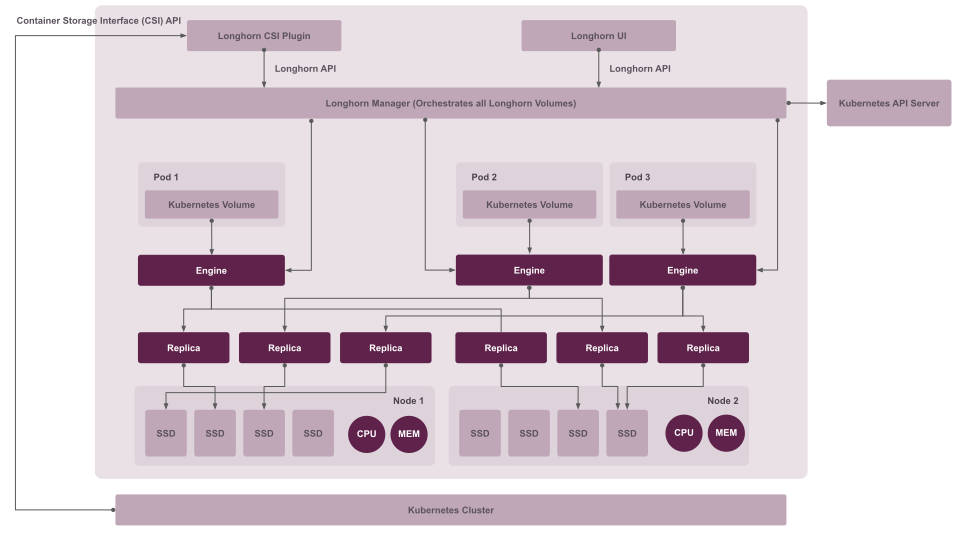
Longhorn creates replicated volumes across multiple nodes.
Key characteristics:
Each volume is replicated (typically 3 replicas)
Data is stored on node disks configured earlier
Pods access volumes through Kubernetes PersistentVolumeClaims
This architecture provides resilience against node failure.
Creating a test persistent volume claim

You can validate storage by creating a simple PVC.
Example:
apiVersion: v1
kind: PersistentVolumeClaim
metadata:
  name: test-pvc
spec:
  accessModes:
    - ReadWriteOnce
  storageClassName: longhorn
  resources:
    requests:
      storage: 2Gi
Apply:
kubectl apply -f pvc.yaml
Verify:
kubectl get pvc
Status should become Bound.
Why storage validation is important now
Before deploying databases or messaging systems, confirm:
Volumes provision dynamically
Replication works
Nodes can handle storage load
No disk pressure warnings appear
Fixing storage problems later in production environments is significantly harder.
What’s next
In the next part, we will deploy object storage inside Kubernetes to support application backups, artifacts, and data pipelines.


